

Have you ever been browsing on your Android phone, only to be suddenly redirected to a strange white screen with a long, confusing address at the top? If you look closely at the address bar, you might see a string of text that reads content://cz.mobilesoft.appblock.fileprovider/cache/blank.html.
It looks technical, a little scary, and somewhat broken. Many users immediately worry that their phone has been infected with a virus or that their browser has crashed.
Here is the good news: it is not a virus. It is actually a sign that a productivity app on your phone is doing exactly what you asked it to do.
In this guide, we will break down exactly what this file path means, why it appears on your screen, and how to manage it. We will also cover troubleshooting steps if this screen gets stuck or appears when it shouldn’t.
What Is This Long, Confusing File Path?
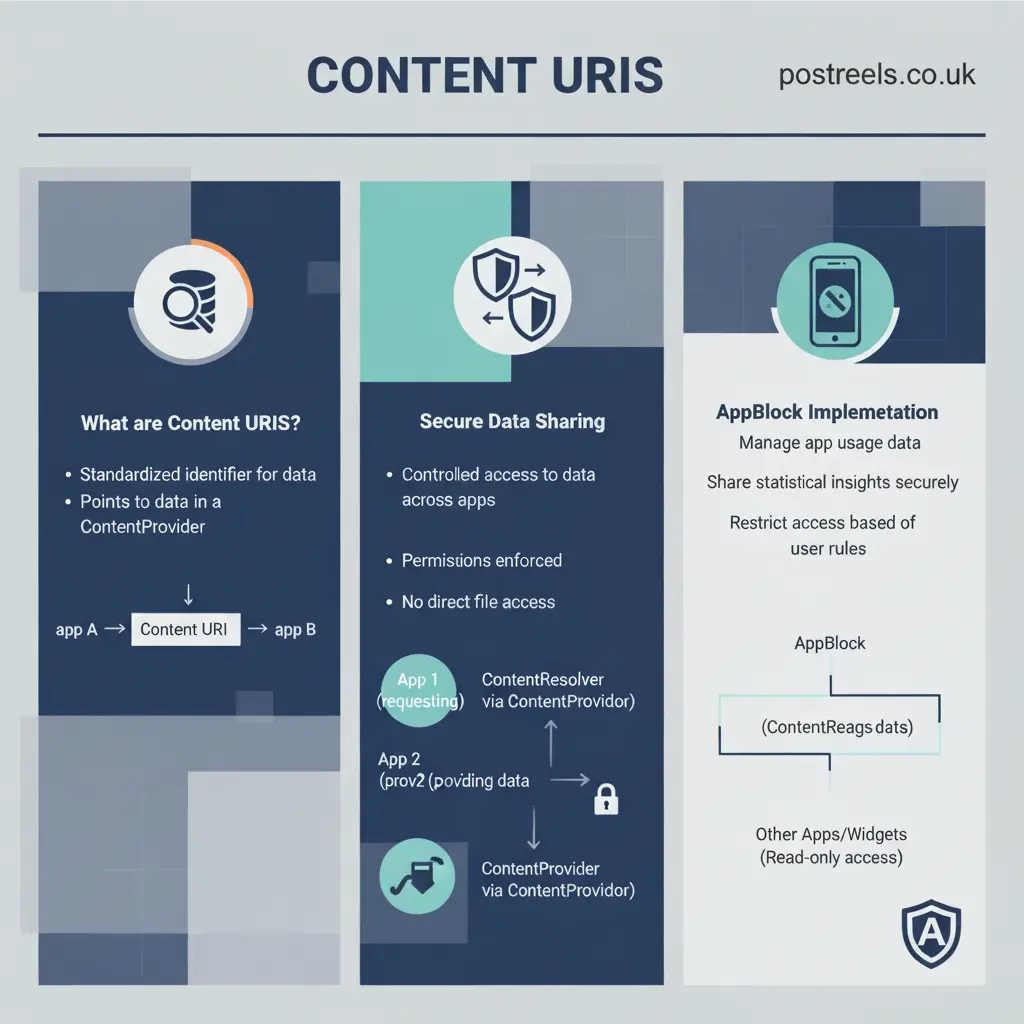
To understand what is happening, we need to dissect the phrase content cz mobilesoft appblock fileprovider cache blank html. While it looks like gibberish, it is actually a precise address used by the Android operating system.
When you install applications on Android, they often need to store files and show them to you securely. This string of text is essentially a map telling your phone where to find a specific file.
Breaking Down the URI Structure
Let’s split this “Uniform Resource Identifier” (URI) into parts to make sense of it:
- content://: This is similar to the http:// or https:// you see on websites. It tells Android that this is a local piece of content stored on the device, not a website on the internet.
- cz.mobilesoft.appblock: This is the unique package name for the specific app causing this. In this case, it is the popular productivity tool known as “AppBlock.”
- fileprovider: This is a standard Android security mechanism. It allows an app to share a file securely with another app (like your web browser) without exposing all its private data.
- cache/blank.html: This is the actual file being shown. It is a simple, blank HTML web page stored in the app’s temporary memory (cache).
The Role of AppBlock in Android
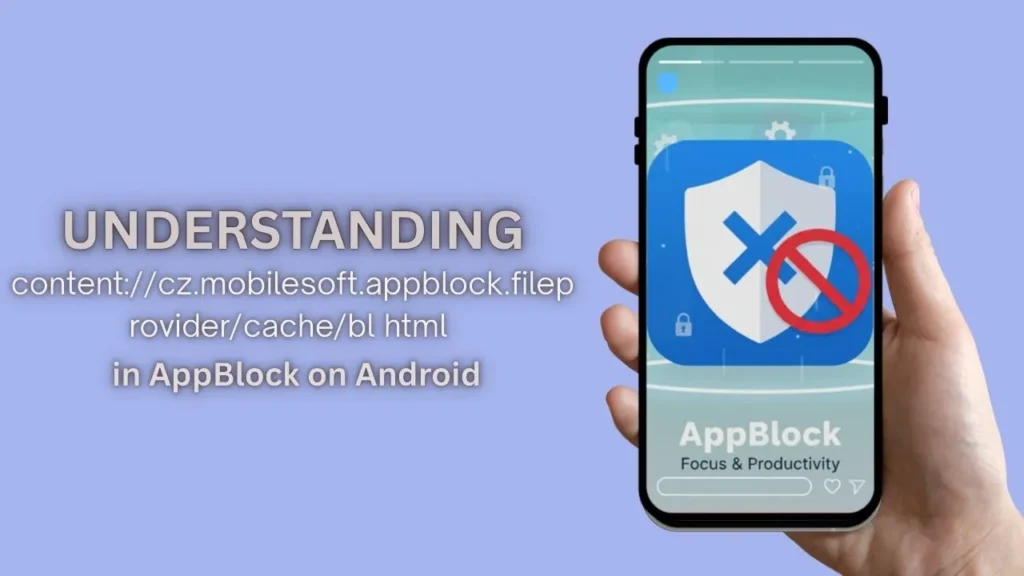
AppBlock is a mobile application designed to help users stay focused. It blocks distracting websites and applications during specific times of the day.
When you try to visit a website that you have added to your block list, AppBlock needs to stop that page from loading. Instead of just crashing the browser, it redirects you to this local file. The content://cz.mobilesoft.appblock.fileprovider/cache/blank.html page is simply a placeholder. It effectively “blanks out” the distraction so you can get back to work.
Why You See This Blank Screen Error
Seeing a blank screen can be jarring. Usually, users expect a pop-up that says “Site Blocked!” However, technical limitations on Android sometimes make the blank page method necessary.
How Web Filtering Works on Mobile
Android is very strict about security. Apps cannot easily control what happens inside your Chrome or Firefox browser due to “sandboxing.” Sandboxing keeps apps separate so they cannot steal data from one another.
To get around this and block a specific URL, AppBlock uses accessibility services or VPN profiles to detect the website you are visiting. If it matches a blocked site, the app commands the browser to navigate away from that site immediately.
The “Blank” Strategy for Blocking Distractions
Redirecting to content://cz.mobilesoft.appblock.fileprovider/cache/blank.html is a lightweight solution. It loads instantly because the file is on your phone. It doesn’t require an internet connection to work.
If the app tried to load a complex “You are blocked” page from the internet, it might be slow. If you were offline, it wouldn’t load at all. By using a local blank file, the app ensures that the distracting content—like Facebook or Instagram—is removed from your sight in milliseconds.
Is This a Virus or Malware?
This is one of the most common questions users have. The file path looks suspicious because it doesn’t look like a normal web address, like google.com.
Why It Looks Suspicious but Isn’t
Malware often tries to redirect browsers to weird locations. However, the presence of the package name cz.mobilesoft.appblock is your proof of safety. This domain identifier belongs to MobileSoft, a legitimate developer based in the Czech Republic (hence the “cz”).
If you see this URL, it simply means you have the AppBlock application installed on your device.
Verifying the Source App
If you want to be 100% sure, you can check your installed apps:
- Open your Android Settings.
- Tap on Apps or Application Manager.
- Scroll down and look for AppBlock.
- If you find it, the mystery is solved. The URL is coming from this app.
Common Scenarios When This Appears
You won’t see this file path every day. It usually triggers under specific conditions related to your Strict Mode or Quick Block settings.
Browsing Restricted Sites
The most common scenario happens when you try to open a website that is currently on a “Blocked” profile. For example, if you have blocked “Sports News” from 9 AM to 5 PM, and you try to open a sports site at 10 AM, the browser will snap to content://cz.mobilesoft.appblock.fileprovider/cache/blank.html.
App Redirects and Overlays
Sometimes, you might tap a link inside a social media app (like clicking a link in Twitter). This opens an “in-app browser.” AppBlock monitors these, too. If the link leads to a restricted domain, the in-app browser will display a blank HTML file instead of the article.
Troubleshooting content cz mobilesoft appblock fileprovider cache blank html Issues
While this feature is intended to help you, it can sometimes glitch. You might find that the browser gets stuck on this blank page even when you aren’t visiting a blocked site, or after the blocking time has ended.
Here is how to fix these common annoyances.
Step 1: Check Your Active Profiles
Before doing anything technical, check if the app is simply doing its job.
- Open the AppBlock app.
- Look at the dashboard to see if a Blocking Profile is currently active.
- Check if Strict Mode is turned on.
- If a profile is active, turn it off temporarily to see if the browser returns to normal.
Step 2: Clearing the App Cache
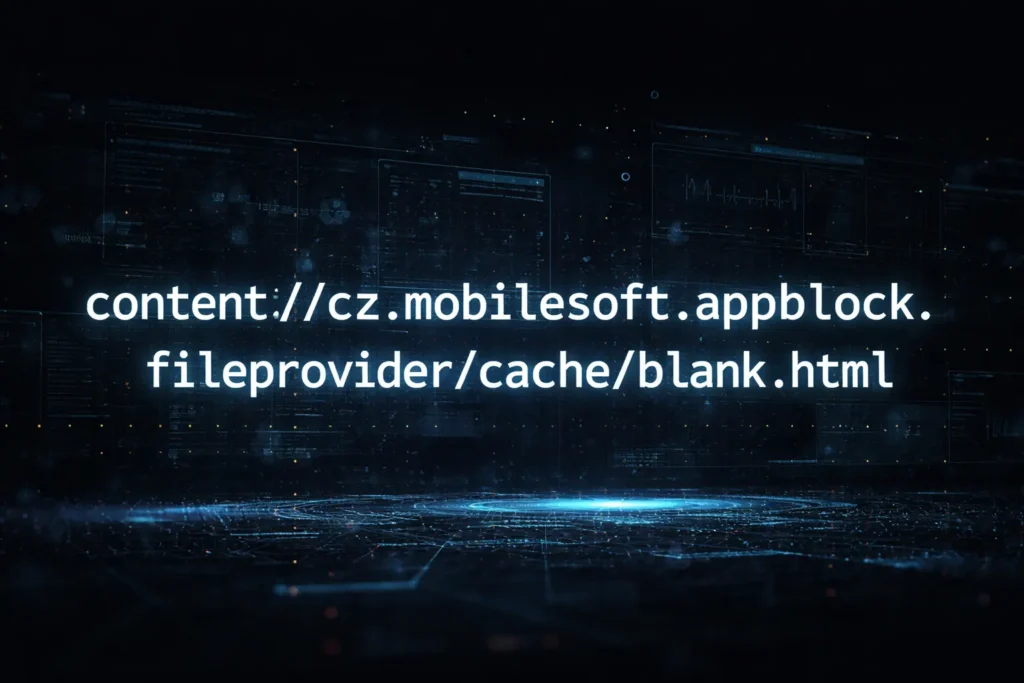
Sometimes, the “cache” part of content://cz.mobilesoft.appblock.fileprovider/cache/blank.html gets stuck. The browser might remember this redirect even after the block is lifted. Clearing the cache can reset this behavior.
How to Clear Cache on Android
- Go to your phone’s Settings.
- Select Apps.
- Find AppBlock in the list.
- Tap on Storage & Cache.
- Tap the Clear Cache button (do not tap Clear Data unless you want to reset your settings).
- Optional: Go back to the Apps list, find your web browser (e.g., Chrome), and clear its cache as well.
Step 3: Updating the AppBlock Application
Developers frequently release updates to fix bugs with FileProviders and URI handling. If you are running an old version of the app, it might not be handling the redirects correctly on newer versions of Android.
Visit the Google Play Store, search for AppBlock, and tap Update if available.
Step 4: Whitelisting Specific URLs
If the blank page appears for sites that shouldn’t be blocked, you may need to adjust your web filters.
- Open AppBlock.
- Go to your blocking profile.
- Check the list of blocked websites.
- Ensure you haven’t accidentally blocked a broad keyword that matches the safe site you are trying to visit.
Advanced Fixes for Persistent Errors
If the basic steps didn’t work and your browser is still constantly redirecting to content cz mobilesoft appblock fileprovider cache blank html, you may need to dig deeper.
Reinstalling the Application
A clean install often resolves corrupted file links.
- Uninstall AppBlock completely.
- Restart your phone. This clears any temporary system links to the file provider.
- Reinstall AppBlock from the Play Store.
- Set up your profiles again.
Checking Android Permissions
AppBlock requires specific permissions to function correctly, specifically the “Accessibility” permission and “Usage Access.” If these permissions are revoked or glitch, the app might trigger the block improperly.
Go to Settings > Accessibility and toggle the AppBlock service off and then back on. This “reboots” the monitoring service.
How Content URIs Work in Android Development
For the tech-savvy readers, understanding why developers use this method is fascinating. It is all about the evolution of Android security.
The FileProvider Explained Simply
In older versions of Android, apps could just pass raw file paths (like file:///sdcard/Download/image.png) to other apps. Google realized this was a security risk. It allowed malicious apps to read files they shouldn’t.
Now, Android uses content:// URIs. The FileProvider acts like a secure bouncer. It grants temporary permission to the web browser to read only that one specific blank file, and nothing else.
Security Benefits of Local Caching
By keeping the content //cz.mobilesoft.appblock.fileprovider/cache/blank.html file local, the developer ensures no data is leaked to the internet. The redirect happens entirely on your device. Your browsing history for that blocked attempt isn’t sent to a cloud server; it is handled instantly by your phone’s processor.
Comparison: Blank Page vs. Custom Block Screens
You might wonder why AppBlock doesn’t show a fancy screen with a motivational quote instead of a blank white page. Both methods exist, but they function differently.
| Feature | Blank Page (HTML Cache) | Custom Overlay Screen |
|---|---|---|
| Speed | Instant | Slight delay |
| Resource Usage | Very Low | Medium |
| Visuals | Plain white screen | Graphics, text, buttons |
| Mechanism | Browser Redirect | “Draw over other apps” |
| Reliability | High (Harder to bypass) | Medium (Can sometimes be closed) |
The blank page method associated with our focus keyword is generally more robust for web blocking because it changes the browser’s destination URL directly.
Improving Your Digital Wellbeing
Encountering content://cz.mobilesoft.appblock.fileprovider/cache/blank.html is actually a sign of success. It means you are taking steps to reclaim your time.
Using AppBlock Effectively
To avoid getting frustrated by the blank screen:
- Schedule Smartly: Don’t block everything 24/7. Set realistic blocks for work hours.
- Use Strict Mode sparingly: Only use the un-cancellable mode when you really lack willpower.
- Analyze the URL: If you see the blank page, take a deep breath. It’s a reminder to get back to the task at hand.
Alternatives to the Blank Screen
If the blank white screen annoys you, check the AppBlock settings. Some versions allow you to customize the blocking behavior. You might be able to switch to a “Block Screen” overlay instead of a browser redirect. This will show a colorful graphic telling you the app is blocked, which is friendlier than the raw file path.
Frequently Asked Questions
Here are some quick answers to common questions regarding this file path content://cz.mobilesoft.appblock.fileprovider/cache/blank.html.
Can I delete this file manually?
No, you cannot delete content://cz.mobilesoft.appblock.fileprovider/cache/blank.html using a file manager. It is a virtual file generated dynamically by the app. The only way to remove it is to uninstall the app or clear the app’s cache.
Does this drain my battery?
No. The redirect to a local blank file actually saves battery compared to loading a heavy, media-rich website like Facebook or TikTok.
Why does content //cz.mobilesoft.appblock.fileprovider/cache/blank.html show up in my history?
Because your browser technically “visited” this page. It is treated as a valid local webpage visit. You can delete it from your browser history just like any other site.
Can I change the blank page to something else?
Generally, no. This specific HTML file is hard-coded into the application’s resources for speed and reliability.
Conclusion
The string content://cz.mobilesoft.appblock.fileprovider/cache/blank.html is not a virus, a bug, or a system error. It is a functional tool used by the AppBlock application to keep you focused. It represents a local, secure blank page that replaces distracting websites when you are trying to work or study.
While seeing a raw file path in your address bar can be confusing at first, it is simply Android’s way of handling secure file sharing between apps. If the page gets stuck, a simple cache clear or app update usually resolves the issue.
Next time you see this URL, don’t panic. Take it as a gentle nudge from your phone: “You said you didn’t want to be here right now. Go do something great instead.”