

It’s a frustrating moment for any Nintendo Switch enthusiast. You’re all set to launch into your custom firmware, but instead of the familiar boot-up, your screen displays a stark message: “a fatal error occurred when running fusee.” This common roadblock can halt your progress, but don’t worry. This guide will walk you through the most effective solutions to fix this issue and get your console back on track. We’ll cover everything from simple file updates to more advanced troubleshooting, ensuring you have all the information you need.
This error almost always points to a communication breakdown between the files on your SD card and the payload you are trying to launch. It could be due to a recent official firmware update from Nintendo, an outdated version of your custom firmware, or a simple mismatch between your files. Understanding the root cause is the first step toward finding the right solution.
Key Takeaways
- The “fatal error” message usually means your custom firmware (Atmosphere) is incompatible with your Switch’s system firmware.
- The most common fix is updating all your custom firmware files, especially Atmosphere and the
fusee.binpayload. - Always use the
fusee.binsoftware that comes with your Atmosphere download to avoid version mismatch errors. - Problems with your SD card, like formatting or corruption, can also trigger this error.
- Avoid downgrading your Switch’s firmware unless you are an expert, as it carries a high risk of bricking your console.
What Causes the “A Fatal Error Occurred When Running Fusee” Message?
When you see the message “a fatal error occurred when running fusee,” it’s your Switch telling you that the initial bootloader, Fusee, can’t proceed. Fusee is the first-stage payload responsible for loading the Atmosphere custom firmware. If it fails, nothing else can load. This error is a safeguard to prevent further issues.
The most frequent culprit is a version mismatch. Nintendo regularly releases system updates for the Switch. These updates can change how the operating system works, making older versions of Atmosphere incompatible. When you update your console but not your custom firmware files, Fusee detects the incompatibility and stops, displaying the error. Other variations, like “a fatal error occurred when running fusee incorrect fusee version,” point directly to this problem. You might also encounter messages like “Unable to identify package1!” or “invalid gpt signature,” which are all related to the same core issue of file or firmware incompatibility.
How Can I Fix an Incorrect Fusee Version Error?
The error “a fatal error occurred when running fusee incorrect fusee version” is very specific. It means the fusee.bin file you are injecting with your payload sender (like TegraRcmGUI) does not match the Atmosphere files located on your SD card. This happens when you update one set of files but not the other. For instance, you might download the latest Atmosphere files onto your SD card but forget to update the fusee.bin on your computer that you use for injection.
To fix this, you must ensure both components are from the exact same release. The best practice is to always download the complete Atmosphere zip file. When you do, extract the contents to your SD card, overwriting the old files. Then, take the fusee.bin from that same downloaded package and use it as your payload. This guarantees perfect sync between the payload and the files it needs to load from the SD card, resolving the version conflict immediately.
Why Does My Switch Say Unable to Identify Package1?
Seeing the “Unable to identify package1” message alongside the fatal error is another clear sign of a problem with your Atmosphere installation. “Package1” is a critical part of the Atmosphere boot process. When Fusee tries to load it from your SD card and can’t find it or recognizes it as outdated, it throws this error. This usually happens for the same reason as other Fusee errors: you’ve updated your Switch’s official firmware, but your Atmosphere files are too old to understand the new system version.
Think of it like trying to open a new document with old software. The software doesn’t recognize the file format. In this case, your old Atmosphere doesn’t recognize the new Switch firmware. The only reliable solution is to download the latest Atmosphere release that explicitly states support for your current Switch firmware version. Copying these new files to your SD card will provide Fusee with the correct “Package1” it needs to continue the boot process.
Should I Update My SD Card Files First?
Yes, updating your SD card files should always be your first step. It’s the simplest and most common solution to the “a fatal error occurred when running fusee” issue. Custom firmware developers, like the team behind Atmosphere, work quickly to release updates that are compatible with Nintendo’s latest firmware. When you encounter this error, it’s highly likely that a new, compatible version of Atmosphere is already available.
Start by visiting the official GitHub page for Atmosphere. Check the releases section for the latest version and read the release notes to confirm it supports your Switch’s firmware. Download the new files. Then, connect your SD card to your computer, and carefully copy the new Atmosphere and bootloader folders onto the root of the SD card. Make sure to merge and replace any existing files when prompted. This single step resolves the vast majority of Fusee-related fatal errors.
What is the Correct Way to Update Atmosphere and Fusee?
Updating your custom firmware files correctly is crucial to avoid errors. A haphazard update can cause more problems than it solves. Follow a methodical process to ensure a smooth transition. Start by getting the latest files from the official source, which is the Atmosphere GitHub repository. Avoid third-party download sites, which may bundle adware or outdated files. Once you have the official zip file, your main task is to replace the old files on your SD card with the new ones.
Here is a step-by-step process:
- Turn off your Nintendo Switch completely.
- Remove the SD card from your Switch and insert it into your computer.
- Download the latest release of Atmosphere.
- Extract the contents of the downloaded zip file.
- Copy the
atmosphereandbootloaderfolders from the extracted files. - Paste these folders onto the root of your SD card.
- Your computer will ask if you want to replace the existing files. Choose “Replace all” or “Merge” to overwrite the old files with the new ones.
- Locate the
fusee.binfile from the downloaded package and copy it to the folder where you keep your payloads for injection. - Safely eject the SD card and re-insert it into your Switch.
- Boot into RCM and inject the new
fusee.binpayload.
Following these steps ensures all components are in sync and compatible.
Could My SD Card Be the Problem?
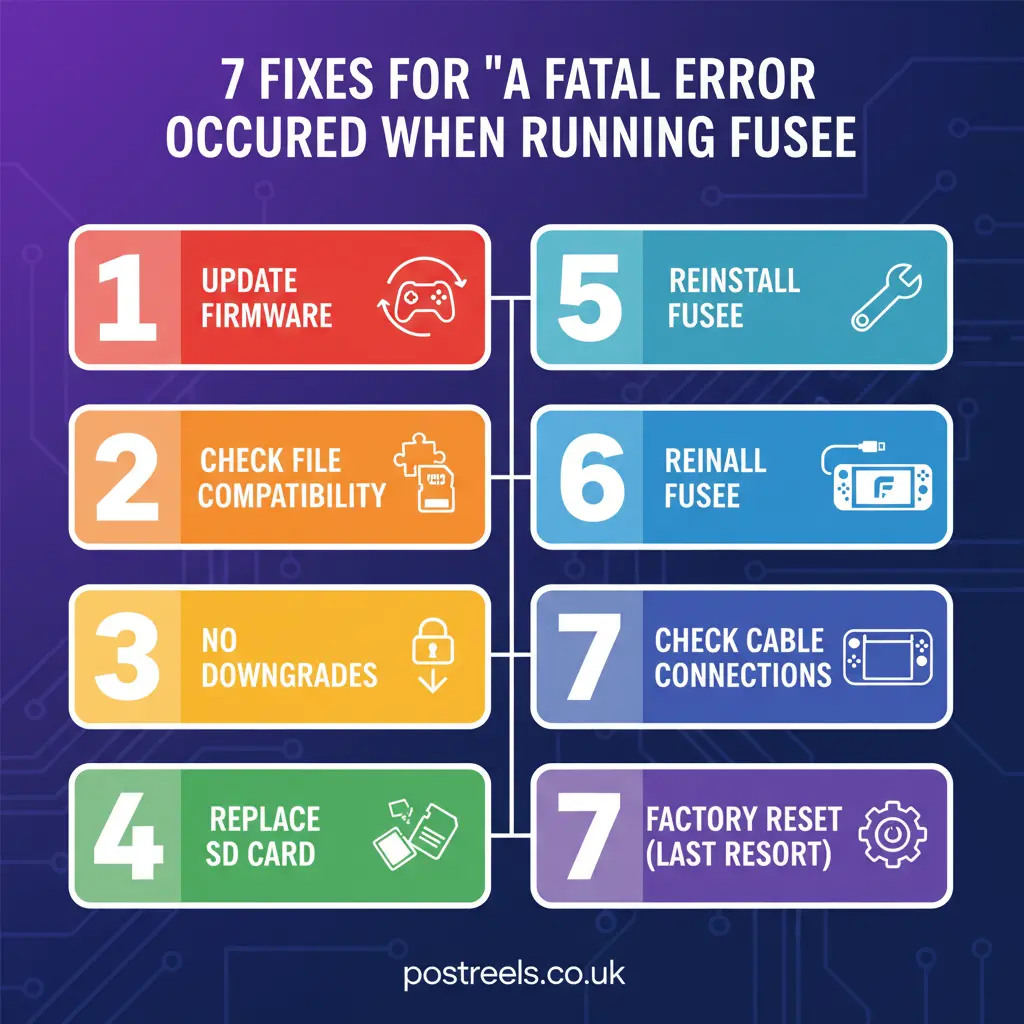
While firmware incompatibility is the primary cause, a faulty or improperly configured SD card can also lead to the “a fatal error occurred when running fusee” message. The Fusee payload needs to read files from the SD card to boot Atmosphere. If it cannot access the card or read the files correctly, it will fail. This can happen if the SD card is corrupted, not formatted correctly, or is a low-quality or fake card that can’t handle the data transfer speeds.
First, ensure your SD card is formatted to FAT32. While larger cards often come formatted as exFAT, FAT32 is generally more stable for Switch homebrew. You can use a tool like Rufus or guiformat on Windows to format your card to FAT32. If formatting doesn’t help, you can check the card for errors using your computer’s built-in disk utility tools. A simple scan can sometimes detect and repair bad sectors. If you suspect you have a fake SD card, which is common with large-capacity cards sold at low prices, you can use a tool like H2testw to verify its true capacity and speed.
| Error Message Variant | Common Cause | Primary Solution |
|---|---|---|
| A fatal error occurred when running Fusee | General incompatibility | Update Atmosphere to the latest version. |
| Incorrect fusee version | fusee.bin payload and SD files are mismatched | Use the fusee.bin from the same Atmosphere release as the files on your SD card. |
| Unable to identify package1 | Atmosphere version is too old for the Switch firmware | Update Atmosphere files on the SD card. |
| Invalid gpt signature | SD card partitioning or formatting issue | Reformat the SD card to FAT32 and copy files back. |
What Should I Do If Updating Atmosphere Doesn’t Work?
If you have updated all your files to the latest versions and are still seeing the fatal error message, it’s time to dig a little deeper. The problem might not be with the core Atmosphere files but with other custom content on your SD card. Outdated custom themes, old sys-modules, or certain homebrew applications can sometimes conflict with a new Atmosphere update and prevent it from booting correctly.
A good troubleshooting step is to try booting with a “clean” installation. To do this, rename the atmosphere folder on your SD card to atmosphere_old and the bootloader folder to bootloader_old. Then, copy over a fresh set of the latest Atmosphere and bootloader folders. This effectively disables all your extra modules and themes. If your Switch boots successfully after this, you know the problem lies within one of the files you disabled. You can then move your old files back one by one until you find the one causing the conflict.
Important Points to Remember
- Always get your files from official sources like the Atmosphere GitHub page.
- Make sure your SD card is formatted to FAT32 for best compatibility.
- Backup your SD card data before making major changes like reformatting.
- Never downgrade your Switch firmware unless you have a NAND backup and know exactly what you’re doing.
Conclusion
Encountering “a fatal error occurred when running fusee” can be alarming, but it is almost always fixable. By systematically checking for the most common causes, you can resolve the issue quickly. The key is to ensure compatibility between your Switch’s firmware and your custom firmware files. Start by updating Atmosphere and its associated fusee.bin payload to their latest versions. If that doesn’t work, investigate potential SD card issues or conflicts with other custom content. With a little patience and the right steps, you’ll move past this error screen and get back to enjoying everything your modified Switch has to offer.
Frequently Asked Questions
1. How do I turn off my Switch from the fatal error screen?
To turn off your Switch from the error screen, simply press and hold the power button for about 12-15 seconds. The console will shut down completely. This is a hard reset and is perfectly safe.
2. Is it safe to update my Switch’s official firmware?
It is safe to update, but you must be prepared to update your custom firmware immediately after. Before you update the official firmware, it’s a good idea to check if a compatible version of Atmosphere has been released. If not, you may want to wait to avoid downtime.
3. Can a bad payload sender cause this error?
While less common, an outdated or malfunctioning payload sender tool on your PC or Android device could potentially cause issues. Ensure your version of TegraRcmGUI, Rekado, or whatever tool you use is up to date. However, the error message itself usually points to a file mismatch on the Switch side.
4. What does “a fatal error occurred when running fusee invalid gpt signature” mean?
This specific error, “invalid gpt signature,” strongly suggests an issue with the SD card’s partition table. This can happen if the card becomes corrupted or was not formatted correctly. The best solution is to back up all your data, reformat the SD card completely (preferably to FAT32), and then copy your files back onto it.
5. Do I need to update my sigpatches?
Yes. Sigpatches are required to run unofficial software. They often need to be updated along with Atmosphere to be compatible with new firmware versions. Always download the latest sigpatches that correspond to your Atmosphere and firmware version and copy them to your SD card.